Preface#
Previously, I used Typecho for my blog, and in 2024, I stumbled upon Mix-Space, a personal space with a decoupled front and back end, which I really loved. Therefore, I migrated my blog. It has now been successfully deployed, and I hope it can help others who want to deploy as well. || It's also a reminder for myself qwq ||
This article's tutorial is: the back end is deployed using Docker, while the front end uses Github Action to build Shiro and then push it to the server (of course, you can also choose the more convenient Docker, but the closed-source version is not provided).
Mix-Space and Shiro Theme Related Links#
Mix Space is a small personal space site program. Unlike traditional blog programs, it adopts a decoupled design, suitable for those who enjoy writing in different styles or types.
Mix Space - An Alternative Personal Space - Mix Space Documentation
Shiro is a personal site front end made by Innei for Mix Space.
A minimalist personal website, embodying the purity of paper and the freshness of snow.
Shiro - A New Style, Setting Sail Again - 静かな森
1 Panel Installation#
Refer to the official website's Online Installation - 1Panel Documentation steps. Here, I am using Ubuntu, so just execute the following command:
Follow the prompts step by step; during this process, you will be asked to enter some account information, passwords, and the default port for 1 Panel, etc. You can just press Enter to use the defaults, which can all be changed in the panel.
Finally, a log will be output, which contains your panel address, username, and password. You can log in to the panel using the address and account provided.
Back-end Core Deployment#
Check and Install Docker#
I deployed the back end using Docker, which is also a recommended method.
Since the 1 Panel panel will install Docker by default, there is no need to check if it is already installed.
Pull and Modify Configuration File#
You can use the command line to pull the file or use the 1 Panel panel to do so; you can modify the storage path as needed.
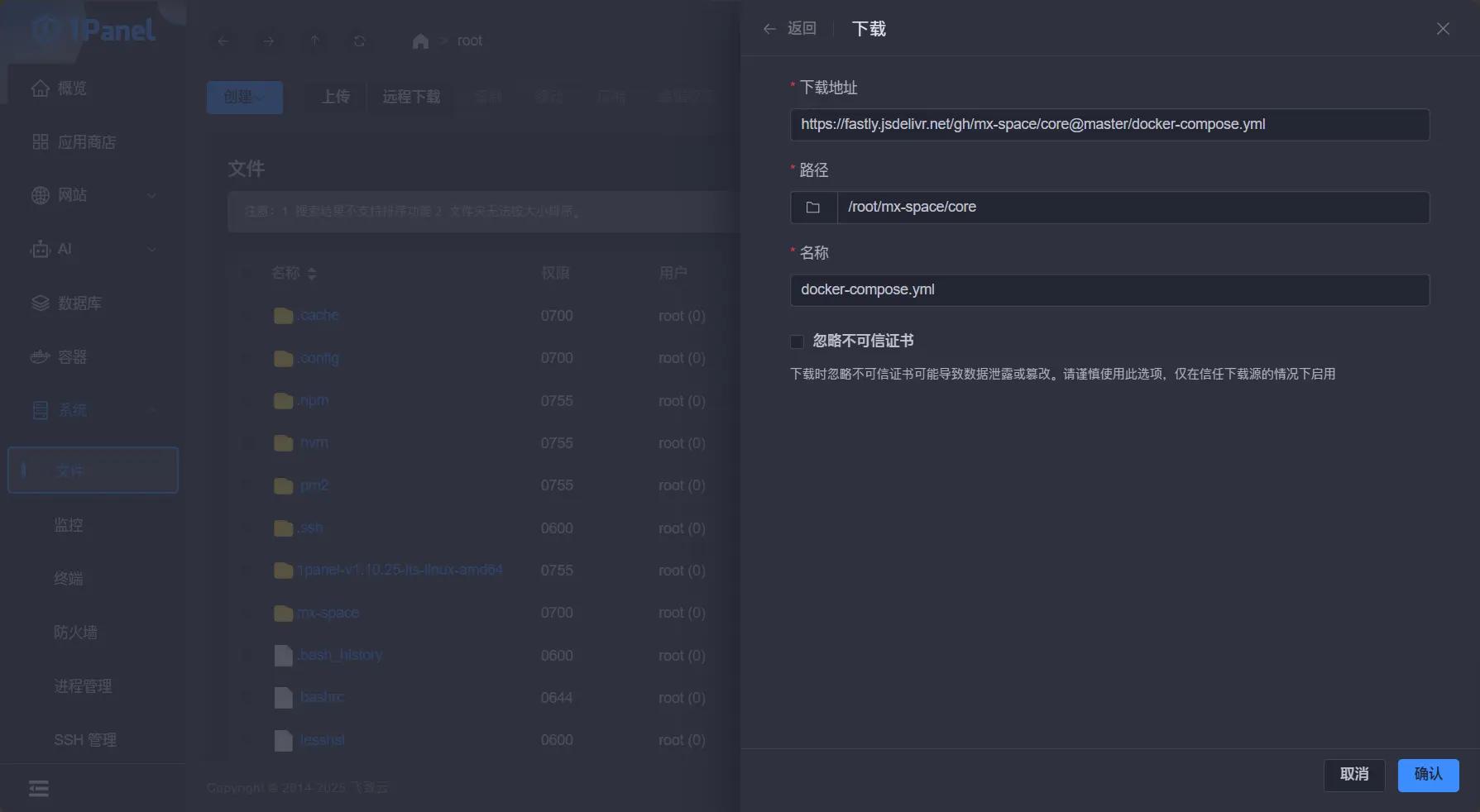
Modify some content in the docker-compose.yml file.
Start Core#
After configuration is complete, directly use the following command in the current directory to start Core.
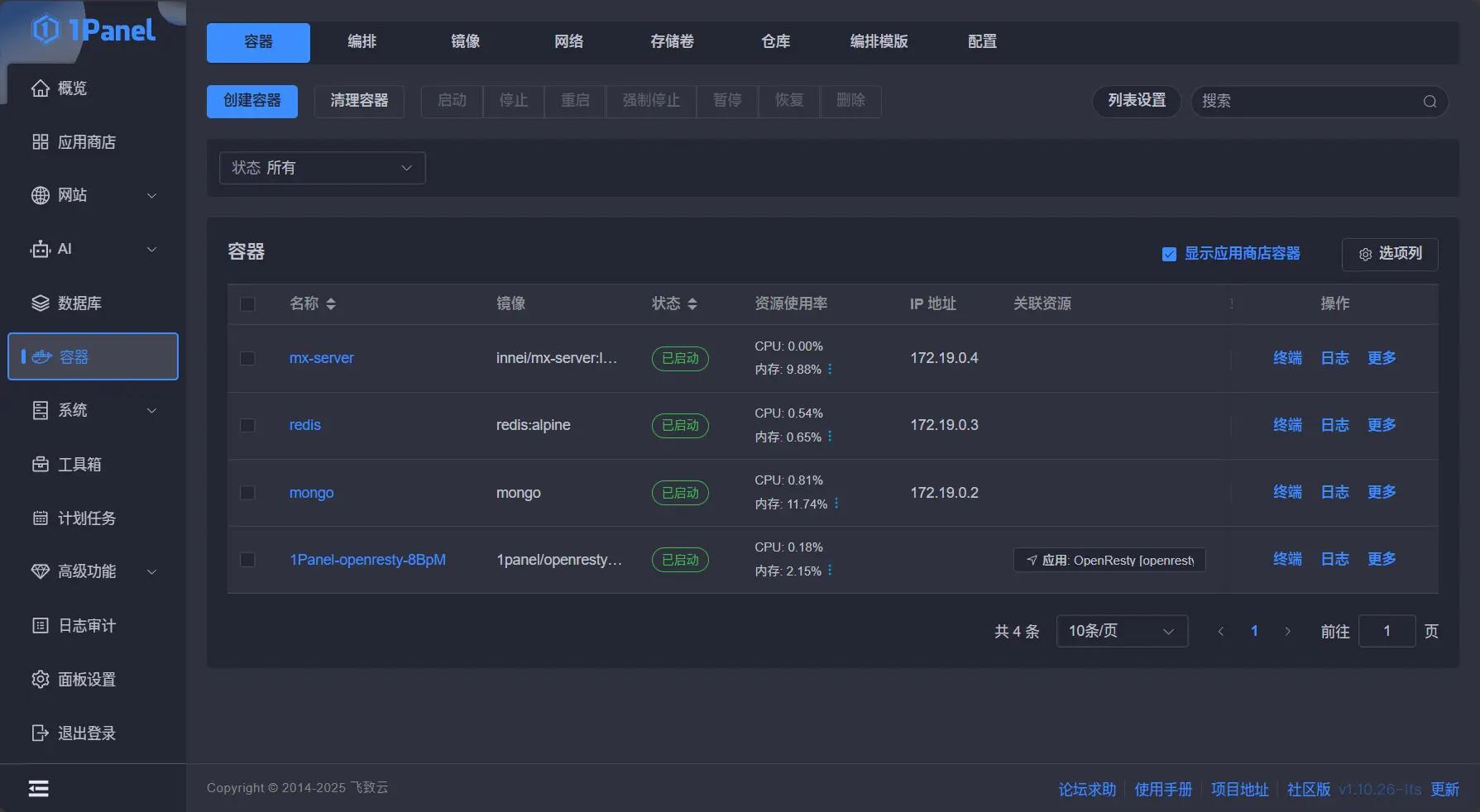
After a successful start, you can see the running status of the mx-server, redis, and mongo containers in the 1 Panel.
At this point, you have successfully set up the back end.
Reverse Proxy Settings#
After the back end is deployed, you also need to set up a reverse proxy to access it. Here, I will also set up the SSL certificate.
Apply for Website Certificate#
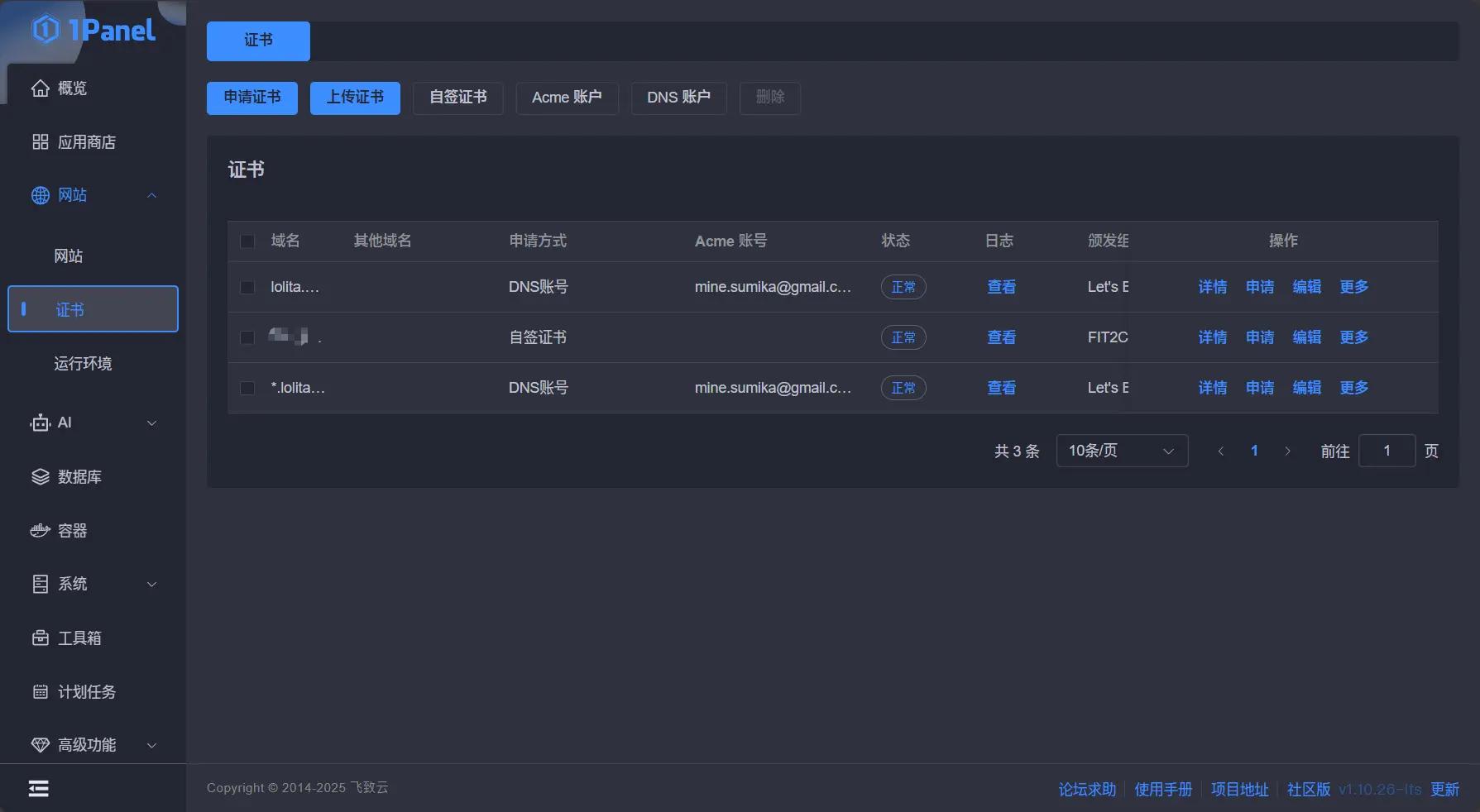
You can directly apply for a certificate in the website/certificate section of the 1 Panel panel.
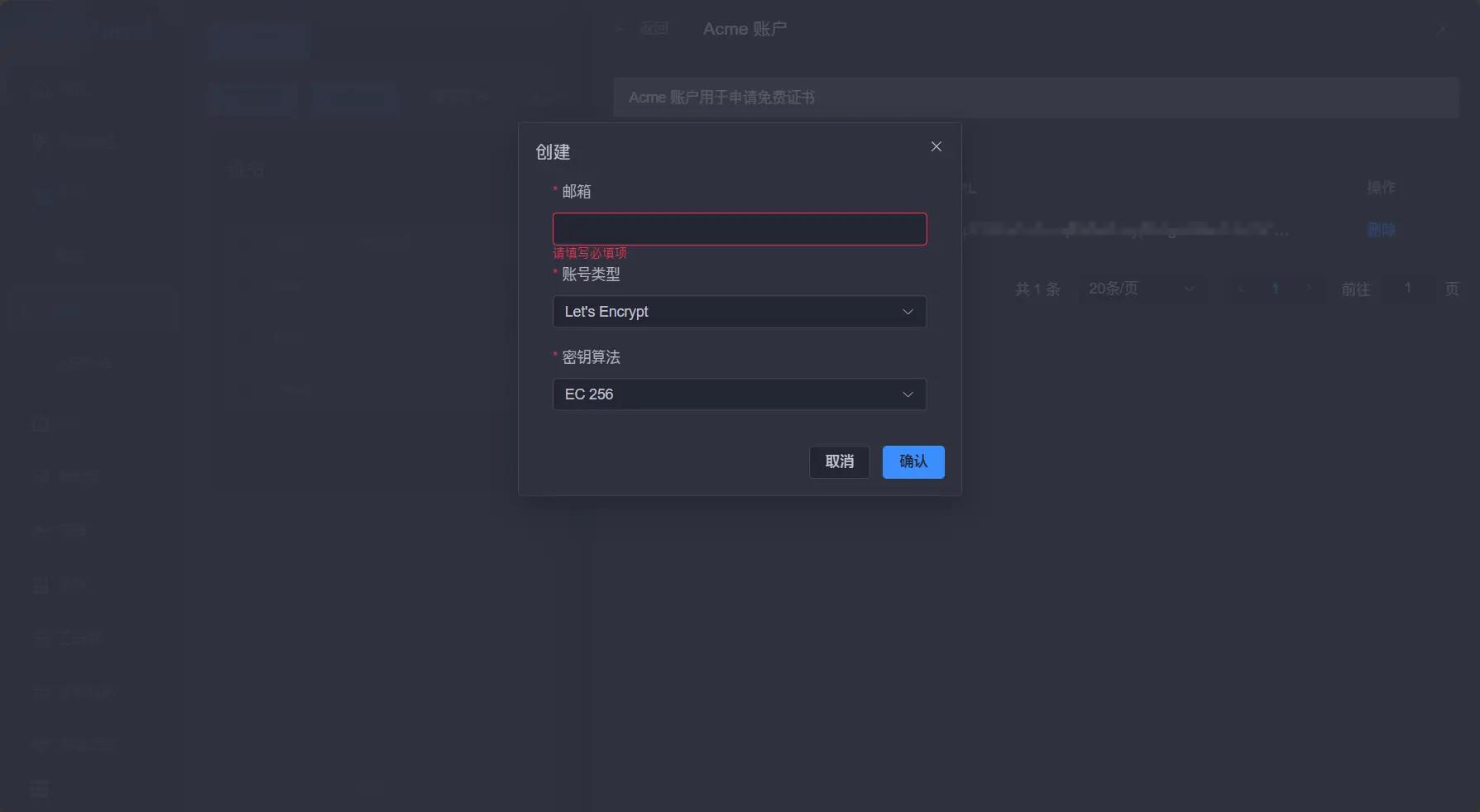
We first need to create an Acme account; after filling in the email, the rest can be left as default.
Next is the verification method for applying for the certificate; I used the DNS account method for verification, which requires creating a DNS account. The panel supports many DNS service providers, so choose your own. I used CloudFlare.
The CloudFlare API token can be applied for in "Manage Account/Account API Tokens," and you can directly use the "Edit Zone DNS" template.
After completing the above steps, the preparation work is done. Click to apply for the certificate and fill in your website domain name.
Create Website and Set Up Reverse Proxy#
When using 1 Panel for the first time, it will prompt you to install OpenResty from the app store; just install it as prompted.
Choose to create a static website, fill in your domain name, and leave the rest as default.
Click on the web configuration, switch to HTTPS, and select the previously applied certificate, and the SSL is configured.
Next, go to the configuration file, copy the content below and add it at the end, save and reload (remember to modify the commented areas to your own).
Here, a single domain method is used. If you need a dual domain for front and back ends, please refer to the official configuration documentation.
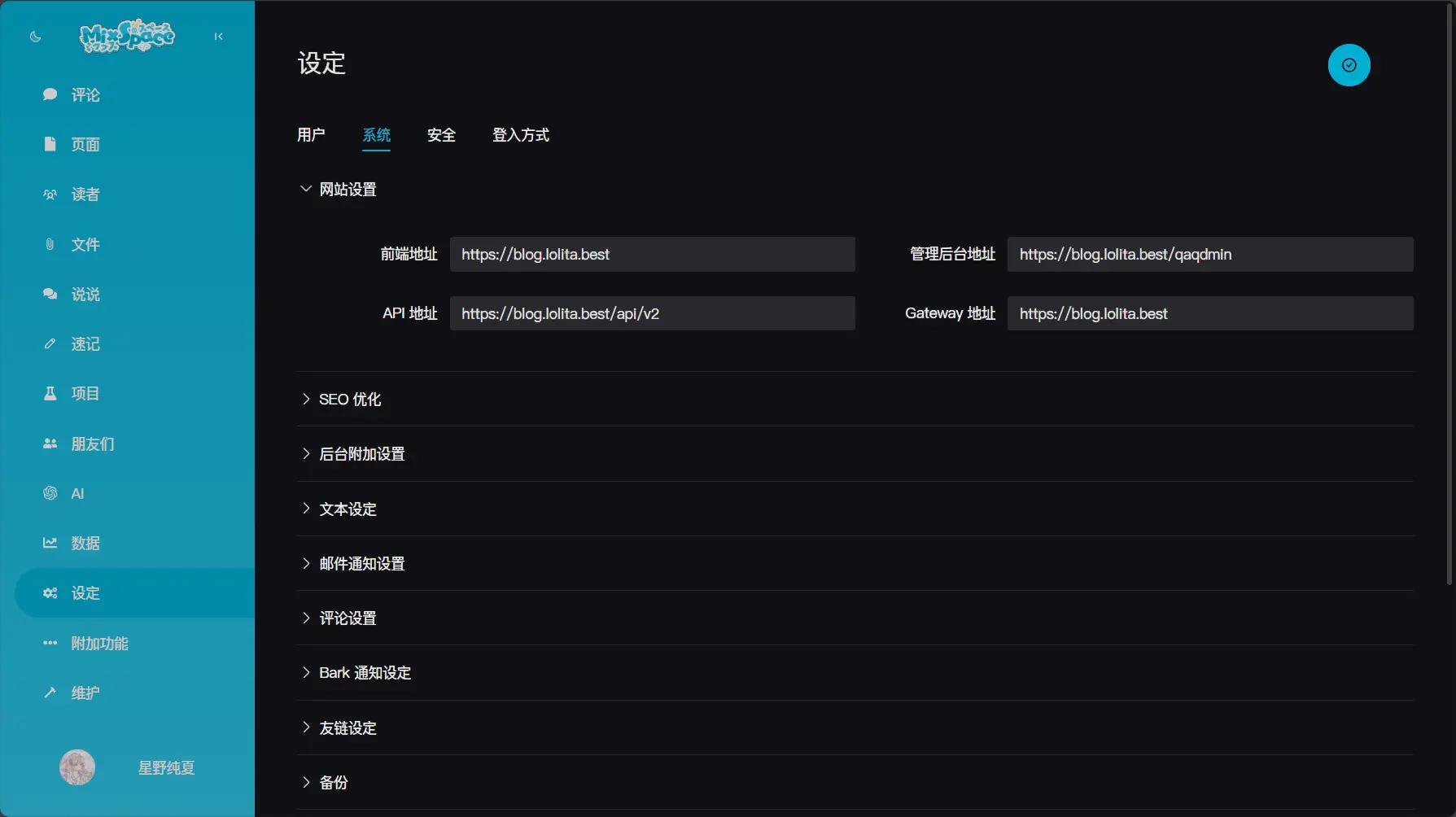
After setting up, you can access the background management address via https://your-domain/qaqdmin, filling in the corresponding content as instructed.
Front-end Deployment#
I used the closed-source version of Shiro and automatically deployed it through Github Action. The open-source version should also be able to follow the steps below.
Github Fork Shiroi-deploy-action Repository and Modify Workflows File#
Repository address: GitHub - innei-dev/shiroi-deploy-action
After forking, modify the deploy.yml file under workflows (the parts that need modification are marked with Chinese comments).
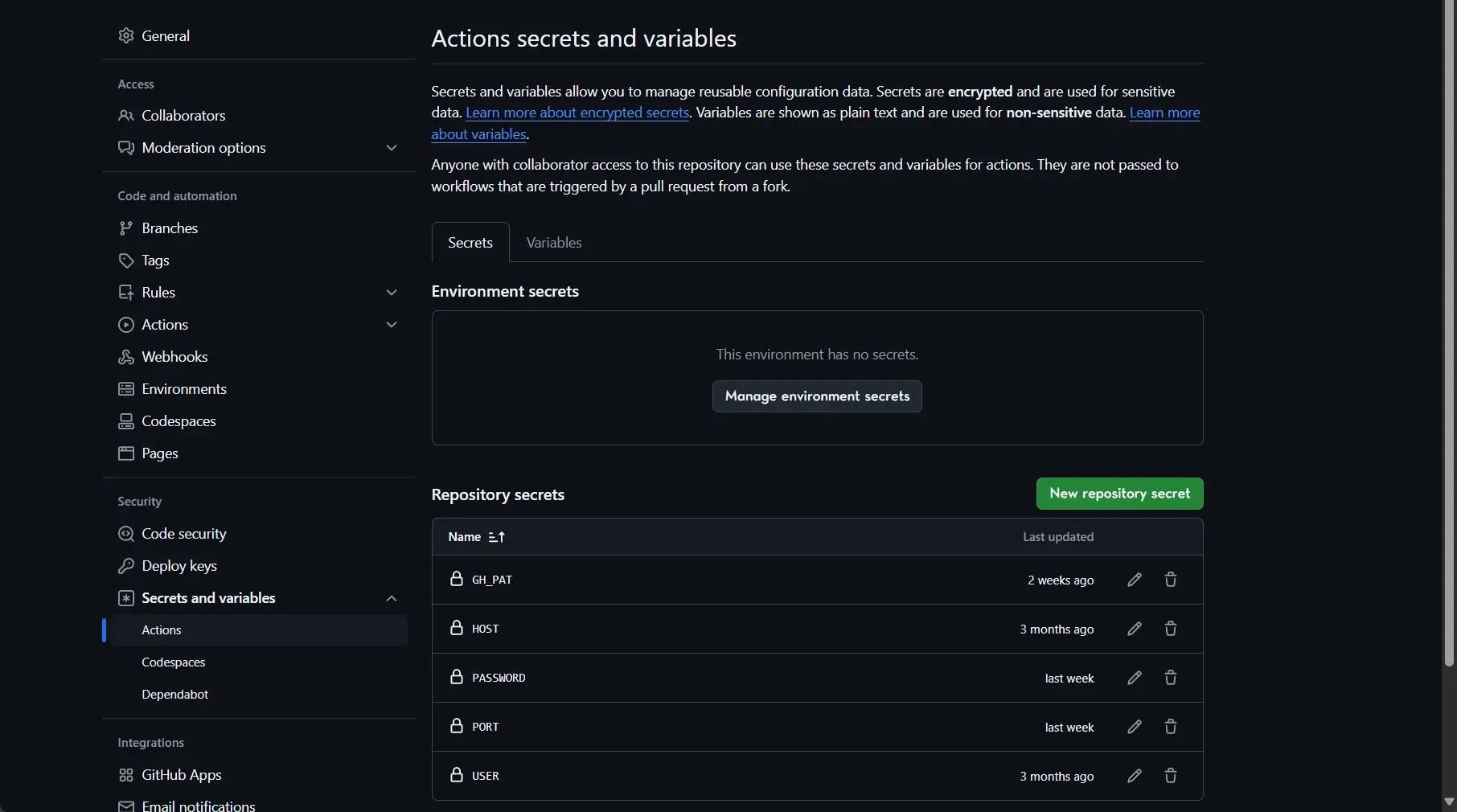
Set Secrets for the Workflow#
HOSTServer addressUSERServer usernamePASSWORDServer passwordPORTServer SSH portKEYServer SSH Key (optional, either password or key)GH_PATGitHub Token to access the previous repository
Configure .env File#
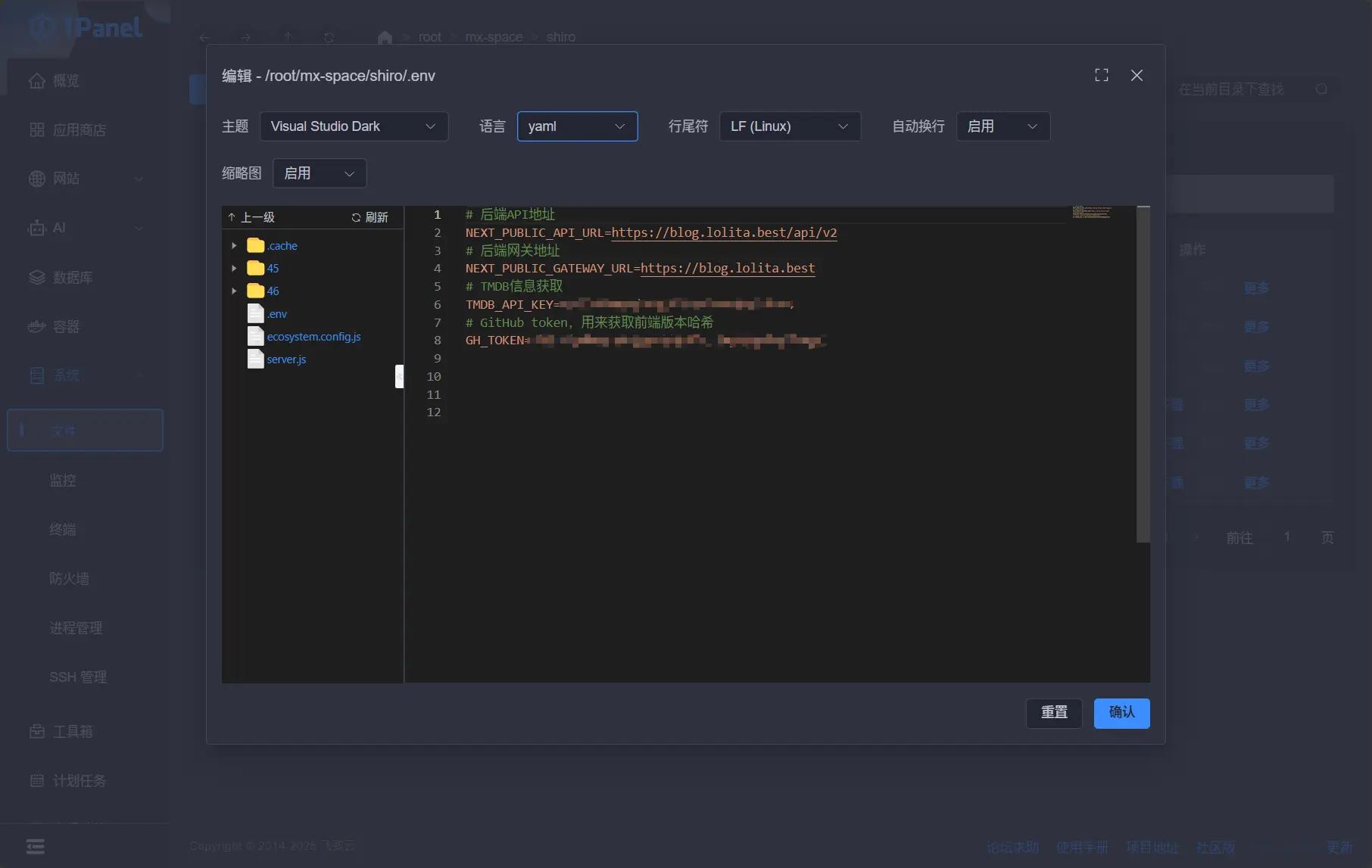
Return to 1 Panel and create a .env file in the specified location of your workflow, copying the following content and modifying it to your own.
For example, the above is root/mx-space/shiro
Install Necessary Environments on the Server#
To deploy the Shiro theme, you need to install Node.js, npm, pnpm, pm2, sharp.
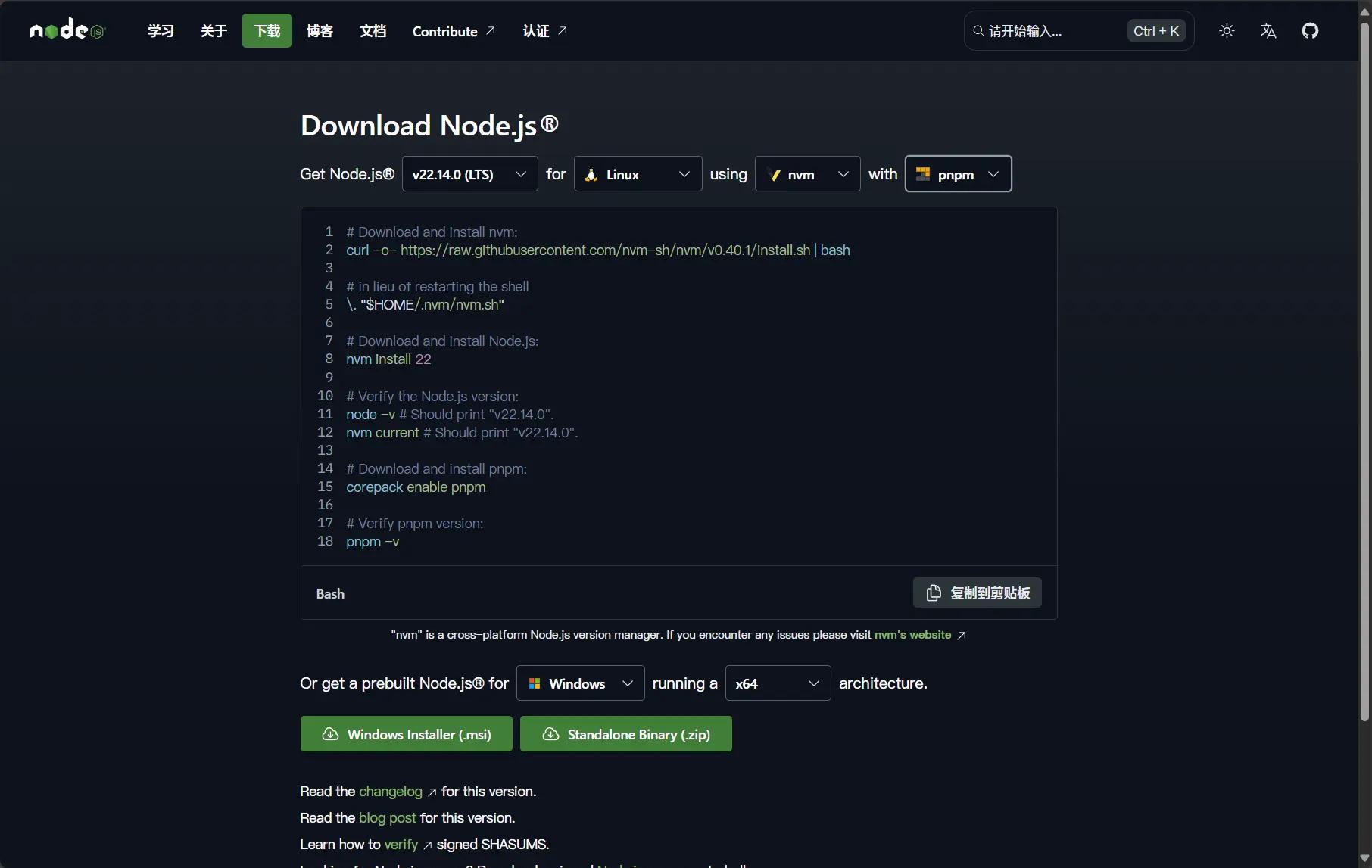
You can enter the following commands in the terminal of 1 Panel to install them.
Now the Node.js official website also has installation methods; just follow the prompts.
Since the workflow uses unzip for decompression, you need to confirm whether the server has unzip installed; otherwise, it will report an error.
Start Workflow#
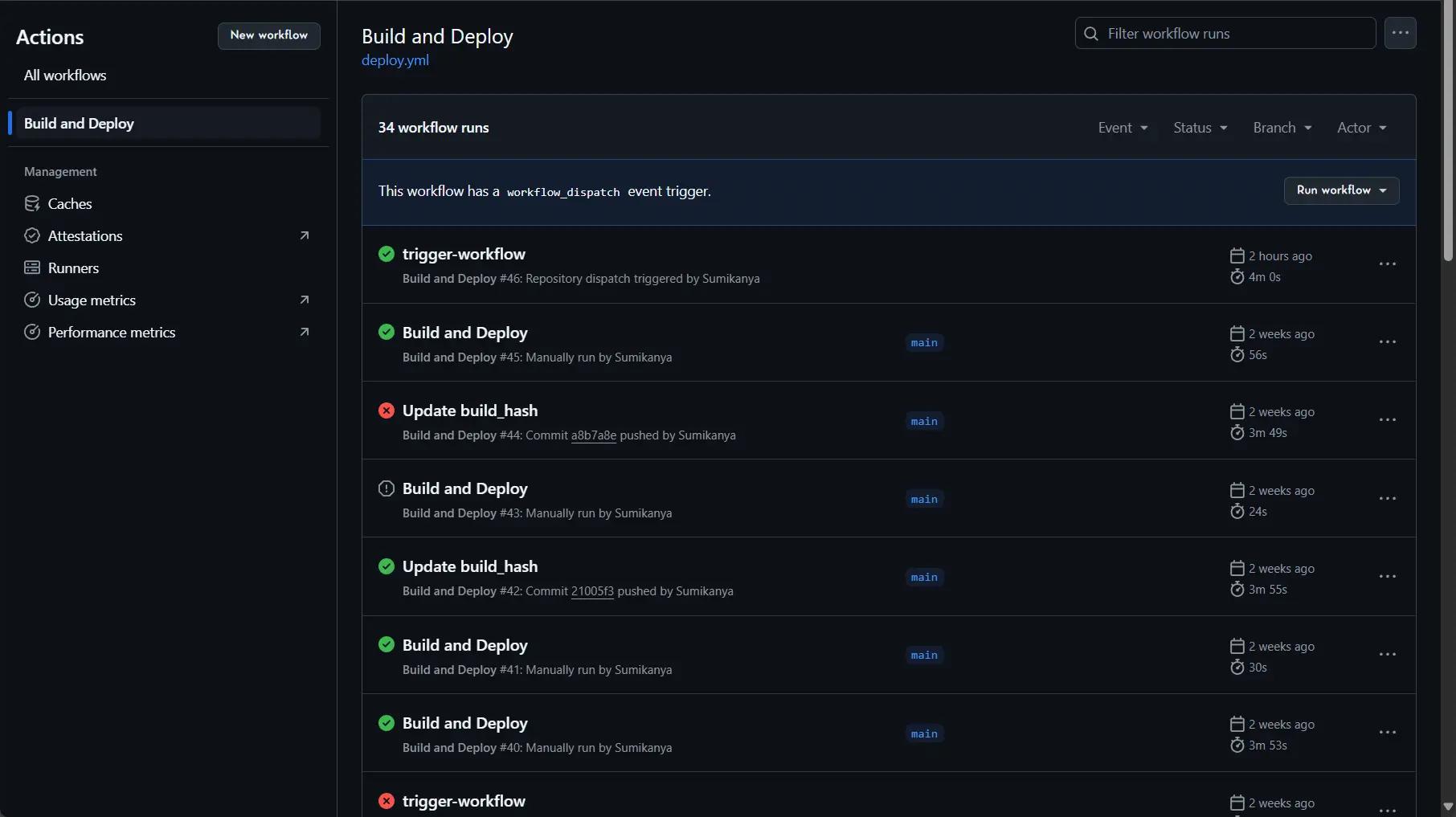
Manually run the workflow in GitHub and wait for it to complete without errors to succeed.
Manage Backend Configuration for Shiro Theme Cloud Functions#
Warning
Reminder
The configuration modification updates for cloud functions do not refresh immediately; please be patient.
The Shiro theme also needs to work with cloud functions. Enter the management backend / additional features / configuration and cloud functions, and first import the relevant files.
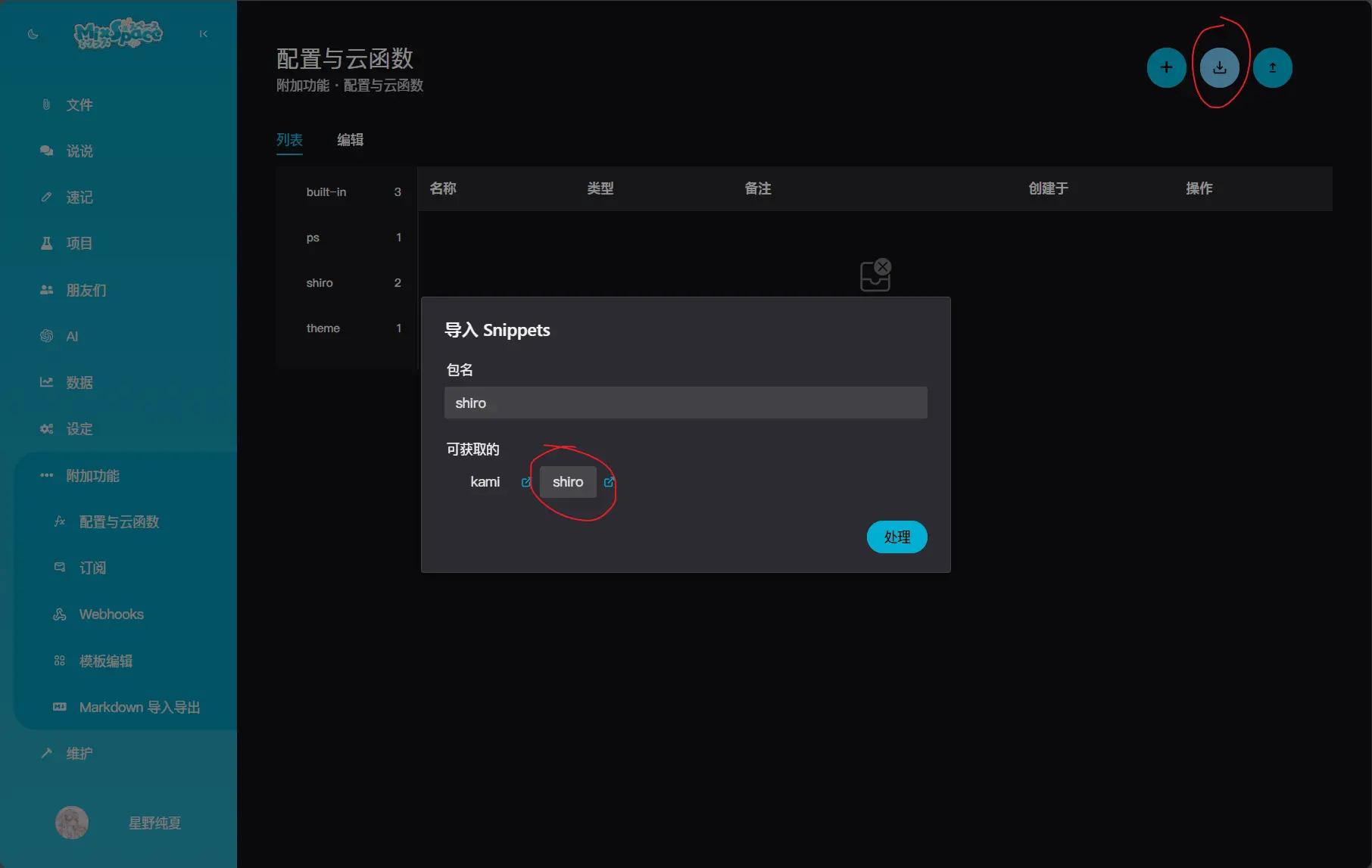
Then click the add button in the upper right corner, and in the editing page, fill in the following settings:
- Name: shiro
- Reference: theme
- Data Type: JSON
- Data: Copy the following example on the right and change it to your own information.
Data content reference: Configuration - Mix Space Documentation

Set PM2 Service to Restore Processes After Restart#
How to manually start Shiro? You can enter the front-end path of shiro and run the following code.
By default, the GitHub workflow configuration has already started it.
You can use the following command to view the running processes.

Deployment Complete#
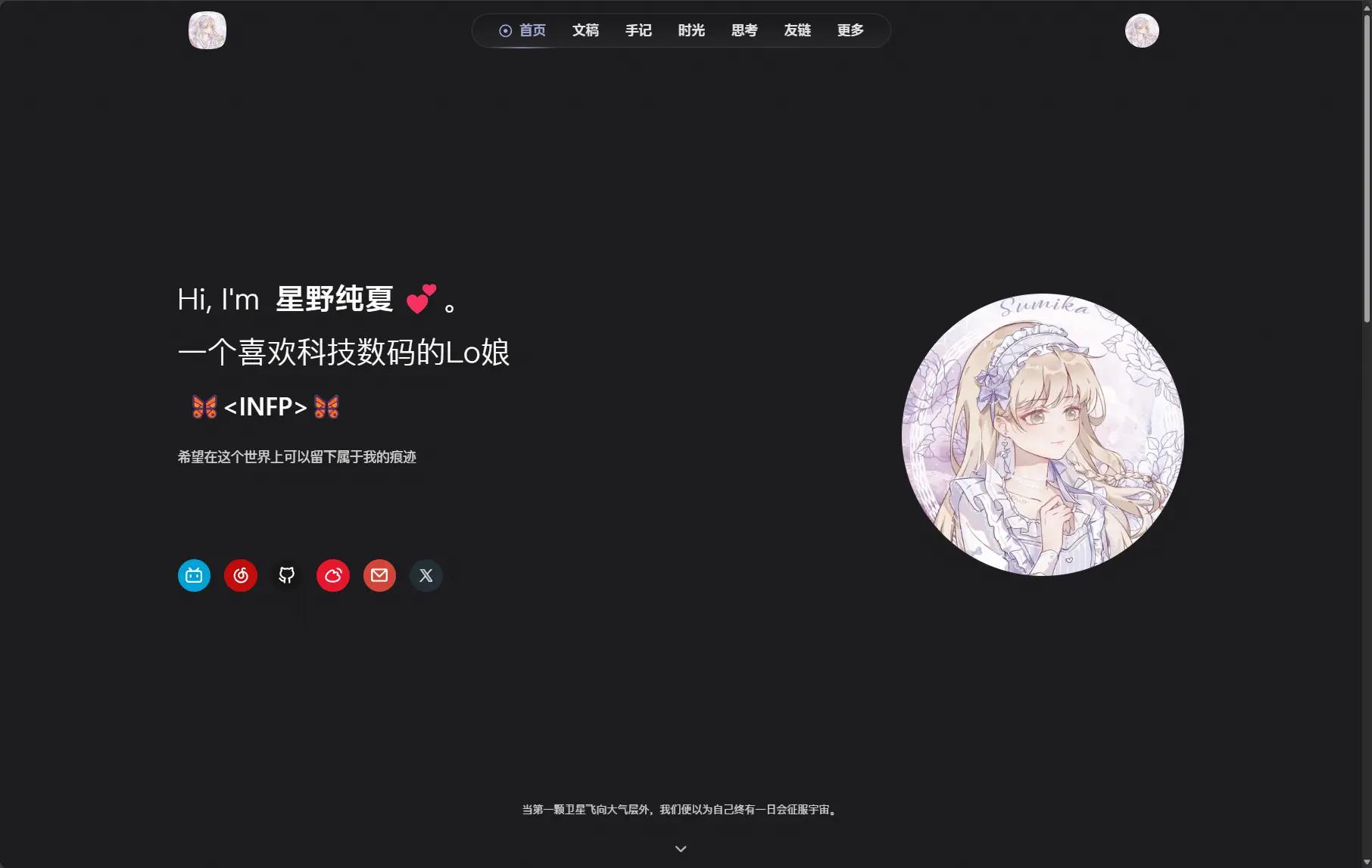
After successfully deploying both the front and back ends, you can directly access your webpage to see the current effect.
Reference Links#
Special thanks to the official and other related tutorials for building
Mix-Space Deploy Latest Front-end Shiro - 华岁云小屋
Trying Github Action Build and Deploy Shiroi - 华岁云小屋
Mix Space - An Alternative Personal Space - Mix Space Documentation
mx-space + Shiro: A Blog as Pure as Paper • Arthals' ink
General Process and Supplement for Shiroi Deployment - Ethan
Migrating Data from WordPress to Mix Space - FoskyM's Blog
This article is synchronized to xLog by Mix Space.
The original link is https://blog.lolita.best/posts/blog/MxspaceDeployShiro